How to create custom actions
Actions control how your app responds to user input such as clicking a button or a point on a graph. If an action is not available in Vizro's built-in actions then you can create a custom action. In this guide we show how to do this.
We also have an in-depth tutorial on creating an action and an explanation of how Vizro actions work.
Note
Do you have an idea for a built-in action? Submit a feature request!
General principles
Many Vizro models have an actions argument that can contain one or more actions. Each action is a Python function that is triggered by a user interaction. The function can optionally have any number of inputs and outputs that refer to a Vizro model id.
To define your own action:
-
write a Python function and decorate it with
@capture("action"): -
attach it to the
actionsargument of a Vizro model usingAction:- call it using the
functionargument - if your action has one or more inputs then specify them as function arguments
- if your action has one or more outputs then specify them as
outputs
import vizro.models as vm actions = vm.Action( function=action_function(input_1="input_id_1", input_2="input_id_2"), # (1)! outputs="output_id_1", # (2)! )- When the dashboard is running, the action's
input_1will be set to the runtime value of the Vizro model withid="input_id_1"and similarly forinput_2. - When the dashboard is running, the action's output "My string value..." will set the value of the Vizro model with
id="output_id_1".
- call it using the
You can also execute multiple actions with a single trigger and attach notifications to your action.
Warning
You should never assume that the values of inputs in your action function are restricted to those that show on the user's screen. A malicious user can execute your action functions with arbitrary inputs. In the tutorial, we discuss in more detail how to write secure actions.
Trigger an action with a button
Here is an example action that gives the current time when a button is clicked.
from datetime import datetime
from vizro.models.types import capture


@capture("action")
def current_time_text():  # (1)!
    time = datetime.now()
    return f"The time is {time}"  # (2)!
- The function has no input arguments.
- The function returns a single value.
To attach the action to a button model, we use it inside the actions argument as follows:
- Call the action function with
function=current_time_text()(remember the()). - The returned value "The time is ..." will update the component
id="time_text"(not yet defined).
Here is the full example code that includes the output component vm.Time(id="time_text").
Trigger an action with a button
from datetime import datetime

import vizro.models as vm
from vizro import Vizro
from vizro.models.types import capture


@capture("action")
def current_time_text():
    time = datetime.now()
    return f"The time is {time}"


page = vm.Page(
    title="Action triggered by button",
    layout=vm.Flex(),
    components=[
        vm.Button(
            actions=vm.Action(
                function=current_time_text(),
                outputs="time_text",
            )
        ),
        vm.Text(id="time_text", text="Click the button"),
    ],
)

dashboard = vm.Dashboard(pages=[page])
Vizro().build(dashboard).run()
 Run and edit this code in Py.Cafe
# Still requires a .py to define a CapturedCallables custom action and parse YAML configuration
# More explanation in the docs on `Dashboard` and extensions.
pages:
  - components:
      - type: button
        actions:
          - type: action
            function:
              _target_: __main__.current_time_text
            outputs: time_text
      - type: text
        id: time_text
        text: Click the button
    layout:
      type: flex
    title: Action triggered by button
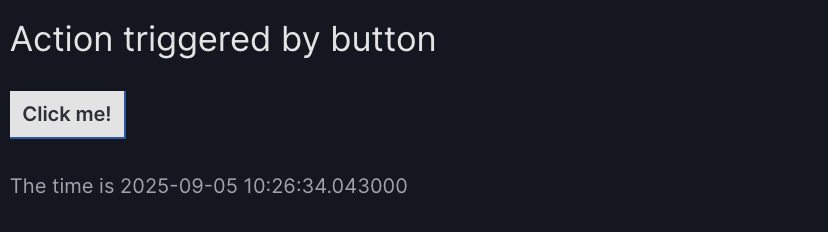
Before clicking the button, the text shows "Click the button". When you click the button, the current_time_text action is triggered. This finds the current time and returns a string "The time is ...". The resulting value is sent back to the user's screen and updates the text of the model vm.Text(id="time_text").
Tip
If you have many buttons that trigger actions then you might like to give them icons. You can even have icon-only buttons with no text.
Trigger an action with a graph
This is already possible, and documentation is coming soon!
Trigger with a runtime input
This extends the above example of an action triggered by a button to include an input. Here is the action function:
from datetime import datetime
from vizro.models.types import capture


@capture("action")
def current_time_text(use_24_hour_clock):  # (1)!
    time_format = "%H:%M:%S" if use_24_hour_clock else "%I:%M:%S %p"
    time = datetime.now().strftime(time_format)
    return f"The time is {time}"  # (2)!
- The function has one argument, which will receive a boolean value
TrueorFalseto determine the time format used. - The function returns a single value.
To attach the action to a button model, we use it inside the actions argument as follows:
vm.Button(
    actions=vm.Action(
        function=current_time_text(use_24_hour_clock="clock_switch"),  # (1)!
        outputs="time_text",  # (2)!
    ),
)
- The argument
use_24_hour_clockcorresponds to the value of the component withid="clock_switch"(not yet defined). Here we used a keyword argumentuse_24_hour_clock="clock_switch"but, as with normal Python function call, we could instead use a positional argument withcurrent_time_text("clock_switch"). - The returned value "The time is ..." will update the component
id="time_text"(not yet defined).
Here is the full example code that includes the input component vm.Switch(id="clock_switch") and the output component vm.Time(id="time_text").
Use runtime inputs
from datetime import datetime

import vizro.models as vm
from vizro import Vizro
from vizro.models.types import capture


@capture("action")
def current_time_text(use_24_hour_clock):
    time_format = "%H:%M:%S" if use_24_hour_clock else "%I:%M:%S %p"
    time = datetime.now().strftime(time_format)
    return f"The time is {time}"


vm.Page.add_type("components", vm.Switch)  # (1)!

page = vm.Page(
    title="Action triggered by button",
    layout=vm.Flex(),
    components=[
        vm.Switch(id="clock_switch", title="24-hour clock", value=True),
        vm.Button(
            actions=vm.Action(
                function=current_time_text(use_24_hour_clock="clock_switch"),
                outputs="time_text",
            ),
        ),
        vm.Text(id="time_text", text="Click the button"),
    ],
)

dashboard = vm.Dashboard(pages=[page])
Vizro().build(dashboard).run()
Run and edit this code in Py.Cafe
- Currently
Switchis designed to be used as a control selectors. In future, Vizro will have a dedicatedFormmodel for the creation of forms. For now, we add them directly ascomponentsinside aContainer. For this to be a valid configuration we must first doadd_typeas for a custom component.
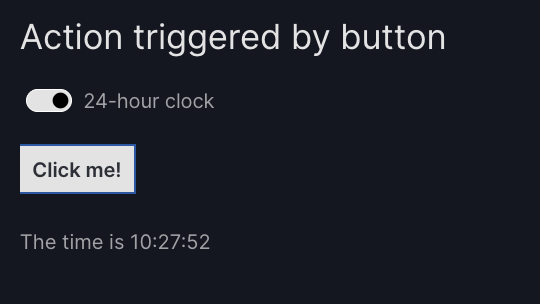
Before clicking the button, the text shows "Click the button". When you click the button, the current_time_text action is triggered. This finds the current time and returns a string "The time is ..." with a time format that depends on the switch's setting. The resulting value is sent back to the user's screen and updates the text of the model vm.Text(id="time_text").
Multiple inputs and outputs
An action can have any number of inputs and outputs (including zero). Here is an action with two inputs and two outputs:
from vizro.models.types import capture


@capture("action")
def action_function(input_1, input_2):
    ...
    return "My string value 2", "My string value 2"
This would be attached to an actions argument as follows:
import vizro.models as vm

actions = vm.Action(
    function=action_function(input_1="input_id_1", input_2="input_id_2"),  # (1)!
    outputs=["output_id_1", "output_id_2"],
)
- As with an ordinary Python function call, this could also be written using positional arguments as
action_function("input_id_1", "input_id_2").
The returned values of an action function with multiple outputs are matched to the outputs in order. For actions with many return values, it can be a good idea to instead return a dictionary where returned values are labeled by string keys. In this case, outputs should also be a dictionary with matching keys, and the order of entries does not matter:
@capture("action")
def action_function(input_1, input_2):
    ...
    return {"key 1": "My string value 2", "key 2": "My string value 2"}


actions = vm.Action(
    function=action_function(input_1="input_id_1", input_2="input_id_2"),
    outputs={"key 1": "output_id_1", "key 2": "output_id_2"},  # (1)!
)
- Specifying outputs in the "wrong" order as
outputs={"key 2": "output_id_2", "key 1": "output_id_1"}would work exactly the same way.
A full real world example of using multiple inputs and outputs is given in the tutorial.
Multiple actions
When you specify multiple actions as actions=[action_1, action_2, ...] then Vizro chains these actions in order, so that action_2 executes only when action_1 has completed. You can freely mix built-in actions and custom actions in an actions chain. For more details on how actions chains execute, see our tutorial on custom actions.
Here is an example actions chain that uses a custom action_function action and the built-in export_data action:
import vizro.actions as va
import vizro.models as vm

actions = [
    va.export_data(),
    vm.Action(
        function=action_function("input_id_1", "input_id_2"),
        outputs="output_id",
    ),
]
Address specific parts of a model
For most actions that you write, you only need the model's id (for example, "clock_switch") for the outputs or as input arguments to the action function. However, some models have multiple arguments that you may want to use in an action. To target a specific argument, join the model's id and the argument name with a dot (for example, "clock_switch.title"), as described below. For more advanced use cases you can even address the underlying Dash component and property.
Model arguments as input and output
To target a particular argument of a model, join the model's id and the argument name with a dot. For example, clock_switch.title targets the title argument of a Switch whose id is "clock_switch".
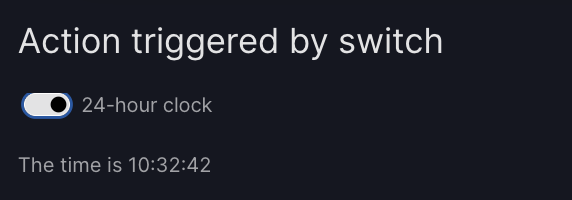
For example, let's alter the above example of a switch that toggles between formatting time with the 12- and 24-hour clock. Switch has an argument title that adds a label to the switch. We can update this in an action by including clock_switch.title in the action's outputs.
Use model argument as output
from datetime import datetime

import vizro.models as vm
from vizro import Vizro
from vizro.models.types import capture


@capture("action")
def current_time_text(use_24_hour_clock):
    time_format = "%H:%M:%S" if use_24_hour_clock else "%I:%M:%S %p"
    switch_title = "24-hour clock" if use_24_hour_clock else "12-hour clock"
    time = datetime.now().strftime(time_format)
    return f"The time is {time}", switch_title


vm.Page.add_type("components", vm.Switch)  # (1)!

page = vm.Page(
    title="Action triggered by switch",
    layout=vm.Flex(),
    components=[
        vm.Switch(
            id="clock_switch",
            title="24-hour clock",
            value=True,
            actions=vm.Action(  # (2)!
                function=current_time_text(use_24_hour_clock="clock_switch"),
                outputs=["time_text", "clock_switch.title"],  # (3)!
            ),
        ),
        vm.Text(id="time_text", text="Toggle the switch"),
    ],
)

dashboard = vm.Dashboard(pages=[page])
Vizro().build(dashboard).run()
Run and edit this code in Py.Cafe
- Currently
Switchis designed to be used as a control selectors. In future, Vizro will have a dedicatedFormmodel for the creation of forms. For now, we add them directly ascomponentsinside aContainer. For this to be a valid configuration we must first doadd_typeas for a custom component. - In the previous example, the action was triggered when a button is clicked; now we change the action to be triggered when the switch itself is clicked.
- This action now has two
outputs. We refer to"clock_switch.title"to update the title of the switch.
Dash properties as input and output
Sometimes you might like to use as input or output a component that is on the screen but cannot be addressed through a Vizro model argument (as in the previous section). Vizro actions in fact accept as input and output any Dash component, addressed by joining the Dash component's id and the property name with a dot. For example, clock_switch.disabled targets the disabled property of the underlying dbc.Switch.
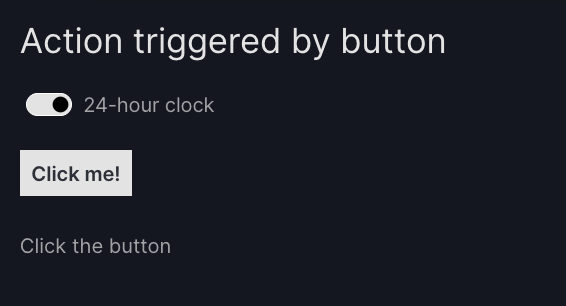
For example, let's alter the above example of a switch that toggles between formatting time with the 12- and 24-hour clock. We want to disable the switch when the button is clicked so that it can no longer be toggled. Switch does not contain an argument to disable the switch, but the underlying Dash component dbc.Switch does. We can address this by using "clock_switch.disabled" in our outputs.
Use Dash property as input
from datetime import datetime

import vizro.models as vm
from vizro import Vizro
from vizro.models.types import capture


@capture("action")
def current_time_text(use_24_hour_clock):
    time_format = "%H:%M:%S" if use_24_hour_clock else "%I:%M:%S %p"
    time = datetime.now().strftime(time_format)
    return f"The time is {time}", True  # (1)!


vm.Page.add_type("components", vm.Switch)  # (2)!

page = vm.Page(
    title="Action triggered by button",
    layout=vm.Flex(),
    components=[
        vm.Switch(id="clock_switch", title="24-hour clock", value=True),
        vm.Button(
            actions=vm.Action(
                function=current_time_text(use_24_hour_clock="clock_switch"),
                outputs=["time_text", "clock_switch.disabled"],  # (3)!
            ),
        ),
        vm.Text(id="time_text", text="Click the button"),
    ],
)

dashboard = vm.Dashboard(pages=[page])
Vizro().build(dashboard).run()
Run and edit this code in Py.Cafe
- We disable the switch by returning
Trueto itsdisabledproperty. After this action runs, the switch can no longer the clicked. To reset it, you must refresh the page. - Currently
Switchis designed to be used as a control selectors. In future, Vizro will have a dedicatedFormmodel for the creation of forms. For now, we add them directly ascomponentsinside aContainer. For this to be a valid configuration we must first doadd_typeas for a custom component. - This action now has two
outputs. We refer to"clock_switch.disabled"to update thedisabledproperty of the component withid="clock_switch".
Notifications
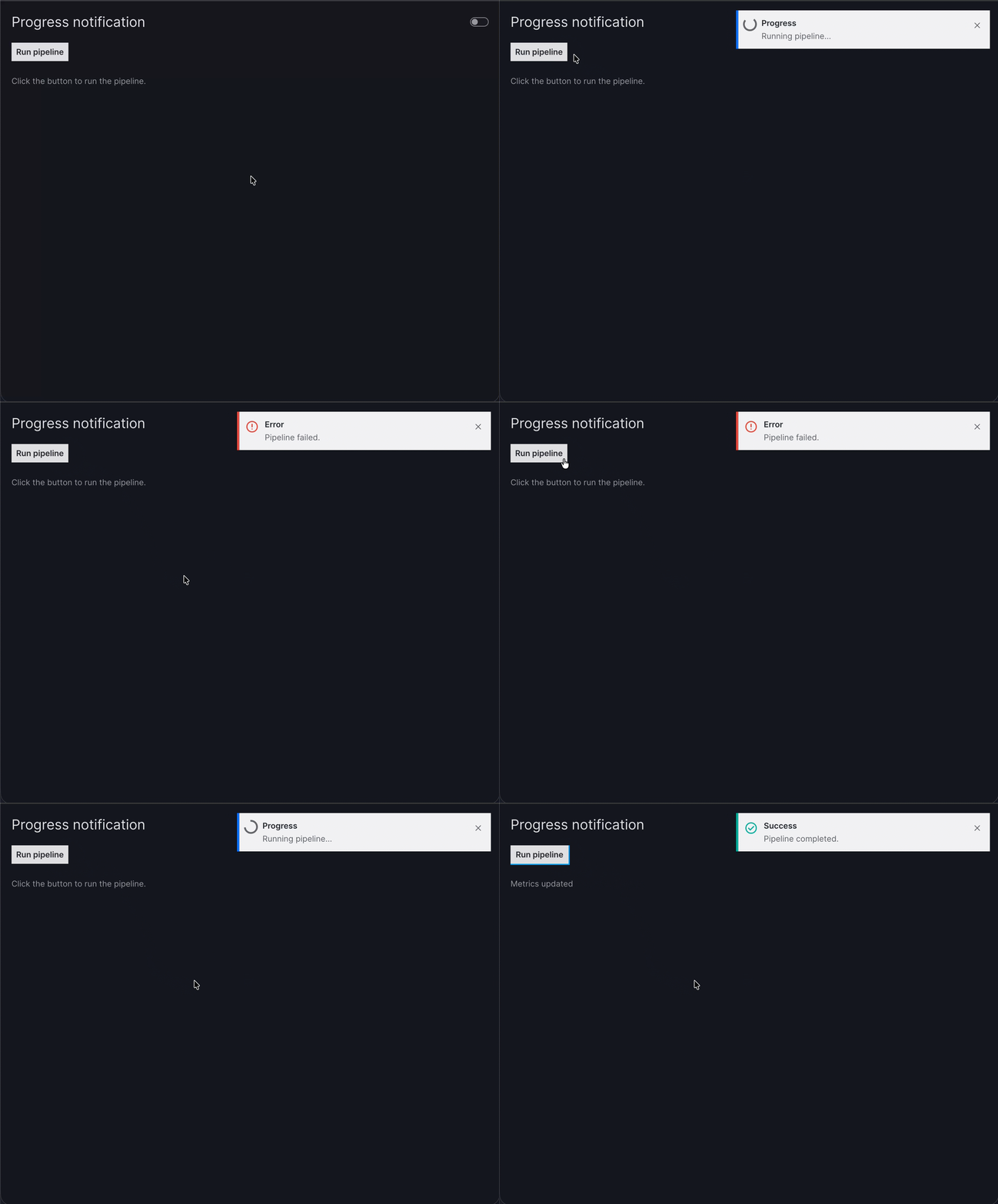
You can use notifications to show the progress and outcome of a custom action with the built-in "progress", "success" and "error" keys in the action's notifications argument:
"progress": shown while an action runs."success": shown when an action completes successfully."error": shown when an action raises an exception.
These keys are all optional; you can define only the ones that are relevant for you.
Progress, success and error notifications
import random
from time import sleep

import vizro.models as vm
from vizro import Vizro
from vizro.models.types import capture


@capture("action")  # (1)!
def run_pipeline():
    sleep(2)
    if random.choice([True, False]):
        raise Exception("Random error.")
    return "Metrics updated"


page = vm.Page(
    title="Progress notification",
    layout=vm.Flex(),
    components=[
        vm.Button(
            text="Run pipeline",
            actions=vm.Action(
                function=run_pipeline(),
                outputs="pipeline_output",
                notifications={
                    "progress": "Running pipeline...",  # (2)!
                    "success": "Pipeline completed.",
                    "error": "Pipeline failed.",
                },
            ),
        ),
        vm.Text(id="pipeline_output", text="Click the button to run the pipeline."),
    ],
)

dashboard = vm.Dashboard(pages=[page])
Vizro().build(dashboard).run()
Run and edit this code in Py.Cafe
- Define a custom action function
run_pipelinethat takes 2 seconds and randomly chooses between returning a success message or raising an exception to simulate an error. - A
"progress"notification with the "Running pipeline..." text is shown immediately when the action starts, and then replaced by either the"success"or"error"notification once the action completes.
# Still requires a .py to define a CapturedCallables custom action and parse YAML configuration
# More explanation in the docs on `Dashboard` and extensions.
pages:
  - components:
      - type: button
        text: Run pipeline
        actions:
          - type: action
            function:
              _target_: __main__.run_pipeline
            outputs: pipeline_output
            notifications:
              progress: Running pipeline...
              success: Pipeline completed.
              error: Pipeline failed.
      - type: text
        id: pipeline_output
        text: Click the button to run the pipeline.
    layout:
      type: flex
    title: Progress notification
Custom notification keys
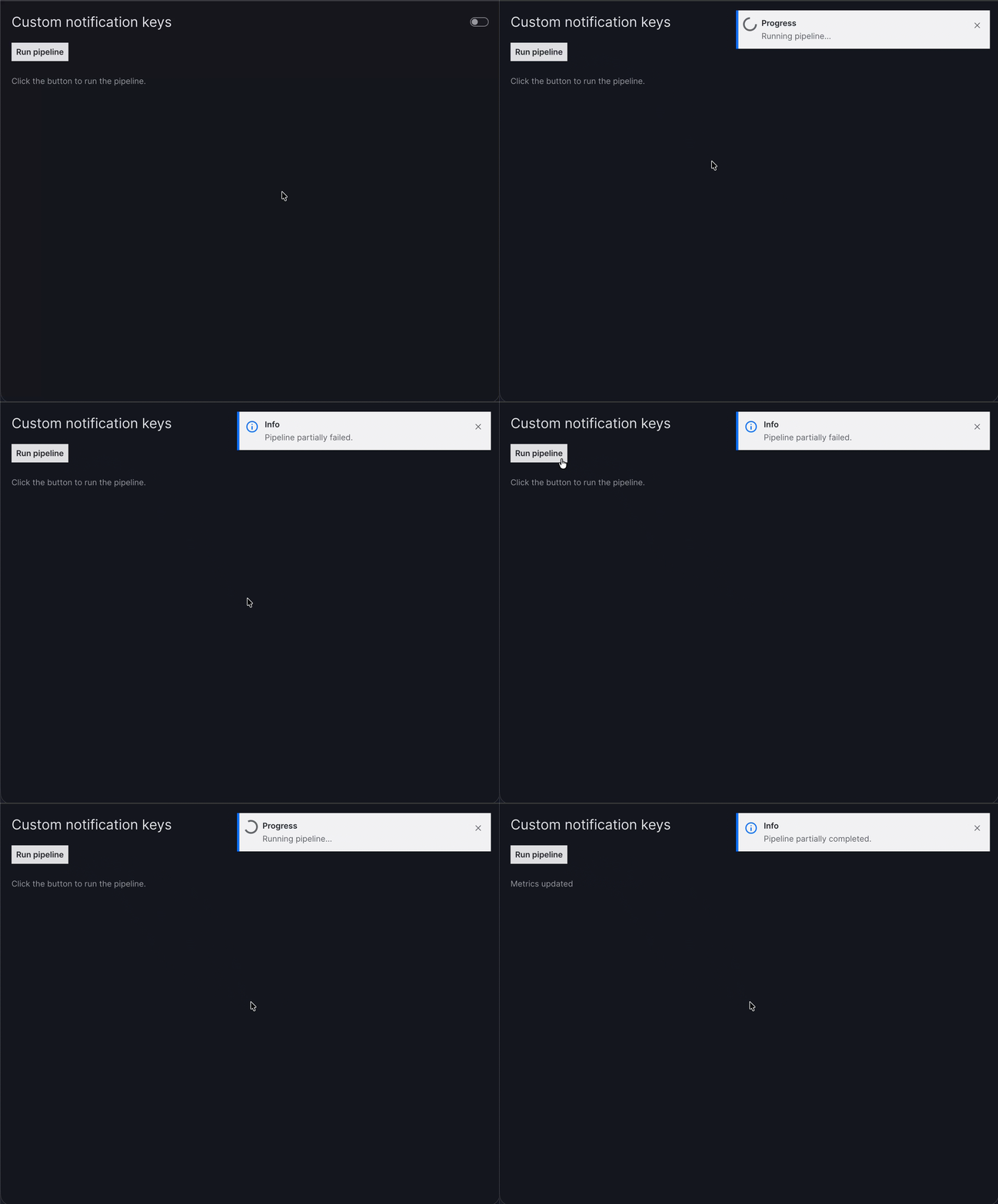
In addition to the built-in keys "progress", "success", "error", you can define your own custom notification keys to handle more specific outcomes. Custom notifications are only shown when the action function explicitly selects them by returning a key or raising an exception with a key that matches one defined in notifications.
To show a custom notification on success, return the key alongside the result:
To show a custom notification on error, include the key when raising an exception:
Custom notifications use the "info" style by default unless configured otherwise.
Custom notification keys
import random
from time import sleep

import vizro.models as vm
from vizro import Vizro
from vizro.models.types import capture


@capture("action")
def run_pipeline():
    sleep(2)

    roll = random.choice(["A", "B", "C", "D"])
    if roll == "A":
        raise Exception("Random error.")  # (1)!
    if roll == "B":
        raise Exception("Random error.", "pipeline_partial_error")  # (2)!
    if roll == "C":
        return "Metrics updated"  # (3)!
    if roll == "D":
        return "Metrics updated", "pipeline_partial_success"  # (4)!


page = vm.Page(
    title="Custom notification keys",
    layout=vm.Flex(),
    components=[
        vm.Button(
            text="Run pipeline",
            actions=vm.Action(
                function=run_pipeline(),
                outputs="pipeline_output",
                notifications={
                    "progress": "Running pipeline...",
                    "success": "Pipeline completed.",
                    "error": "Pipeline failed.",
                    "pipeline_partial_success": "Pipeline partially completed.",
                    "pipeline_partial_error": "Pipeline partially failed.",
                },
            ),
        ),
        vm.Text(id="pipeline_output", text="Click the button to run the pipeline."),
    ],
)

dashboard = vm.Dashboard(pages=[page])
Vizro().build(dashboard).run()
Run and edit this code in Py.Cafe
- Default
"error"key is raised to show the "Pipeline failed." notification. - Custom
"pipeline_partial_error"key is raised to show the "Pipeline partially failed." notification. - Default
"success"key is returned to show the "Pipeline completed." notification. - Custom
"pipeline_partial_success"key is returned to show the "Pipeline partially completed." notification.
# Still requires a .py to define a CapturedCallables custom action and parse YAML configuration
# More explanation in the docs on `Dashboard` and extensions.
pages:
  - components:
      - type: button
        text: Run pipeline
        actions:
          - type: action
            function:
              _target_: __main__.run_pipeline
            outputs: pipeline_output
            notifications:
              progress: Running pipeline...
              success: Pipeline completed.
              error: Pipeline failed.
              pipeline_partial_success: Pipeline partially completed.
              pipeline_partial_error: Pipeline partially failed.
      - type: text
        id: pipeline_output
        text: Click the button to run the pipeline.
    layout:
      type: flex
    title: Custom notification keys
Dynamic notification content
Notification messages can include template variables that are filled with values from the action at runtime. This enables you to display dynamic information, such as results or error details, directly in the notification.
There are two templates to provide more informative and contextual feedback to users without hardcoding the message content:
{result}: Replaced with additional information returned by the action. This value is optional and can be included in the tuple alongside the notification key when the action completes or raises an exception.{error_msg}: Replaced with the error message from an exception.
Templating with {result} and {error_msg}
import random
from time import sleep

import vizro.models as vm
from vizro import Vizro
from vizro.models.types import capture


@capture("action")
def run_pipeline():
    duration = random.uniform(1, 2)
    duration_result = f"Duration: {duration:.1f}s"
    sleep(duration)

    roll = random.choice(["A", "B", "C", "D"])
    if roll == "A":
        raise Exception("Random error.", ("error", duration_result))  # (1)!
    if roll == "B":
        raise Exception("Random error.", ("pipeline_partial_error", duration_result))  # (2)!
    if roll == "C":
        return "Metrics updated", ("success", duration_result)  # (3)!
    if roll == "D":
        return "Metrics updated", ("pipeline_partial_success", duration_result)  # (4)!


page = vm.Page(
    title="Templated notifications",
    layout=vm.Flex(),
    components=[
        vm.Button(
            text="Run pipeline",
            actions=vm.Action(
                function=run_pipeline(),
                outputs="pipeline_output",
                notifications={
                    "progress": "Running pipeline...",
                    "success": "Pipeline done. {result}",  # (5)!
                    "error": "Pipeline failed: {error_msg} {result}",  # (6)!
                    "pipeline_partial_success": "Pipeline partially completed. {result}",  # (7)!
                    "pipeline_partial_error": "Pipeline partially failed: {error_msg} {result}",  # (8)!
                },
            ),
        ),
        vm.Text(id="pipeline_output", text="Click the button to run the pipeline."),
    ],
)

dashboard = vm.Dashboard(pages=[page])
Vizro().build(dashboard).run()
Run and edit this code in Py.Cafe
- Propagate dynamic value
duration_resultto the"error"notification text that replaces the{result}template. - Propagate dynamic value
duration_resultto the"pipeline_partial_error"notification text that replaces the{result}template. - Propagate dynamic value
duration_resultto the"success"notification text that replaces the{result}template. - Propagate dynamic value
duration_resultto the"pipeline_partial_success"notification text that replaces the{result}template. - Define the
"success"notification text with the{result}template. - Define the
"error"notification text with both{error_msg}and{result}templates. - Define the
"pipeline_partial_success"notification text with the{result}template. - Define the
"pipeline_partial_error"notification text with both{error_msg}and{result}templates.
# Still requires a .py to define a CapturedCallables custom action and parse YAML configuration
# More explanation in the docs on `Dashboard` and extensions.
pages:
  - components:
      - type: button
        text: Run pipeline
        actions:
          - type: action
            function:
              _target_: __main__.run_pipeline
            outputs: pipeline_output
            notifications:
              progress: Running pipeline...
              success: "Pipeline done. {result}"
              error: "Pipeline failed: {error_msg} {result}"
              pipeline_partial_success: "Pipeline partially completed. {result}"
              pipeline_partial_error: "Pipeline partially failed: {error_msg} {result}"
      - type: text
        id: pipeline_output
        text: Click the button to run the pipeline.
    layout:
      type: flex
    title: Templated notifications
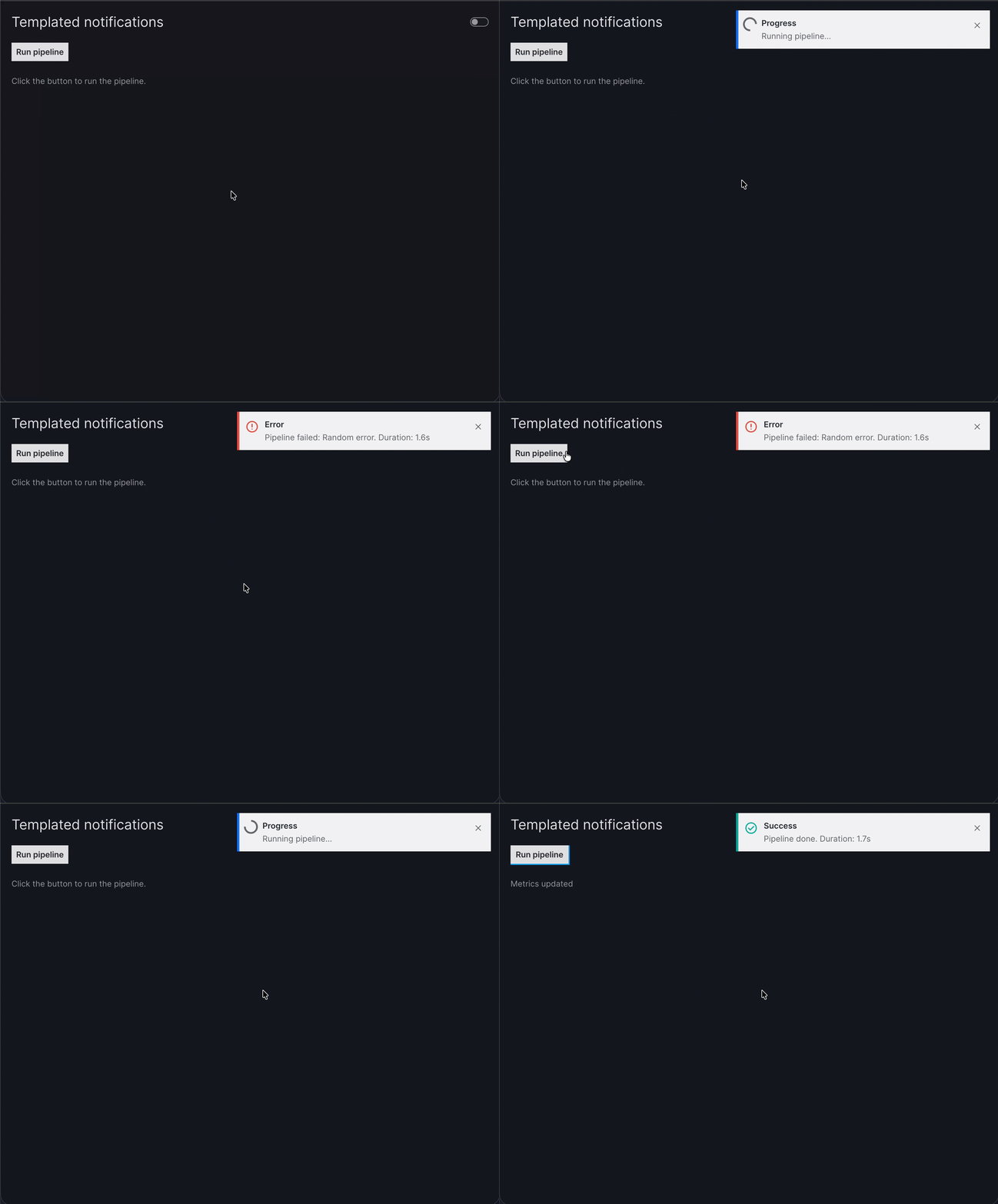
In this example, {result} is filled with the additional detail returned by the action (for example, the duration of the pipeline run). The {error_msg} template is filled with the error message from the exception (for example, "Random error.").
Action inputs in progress notifications
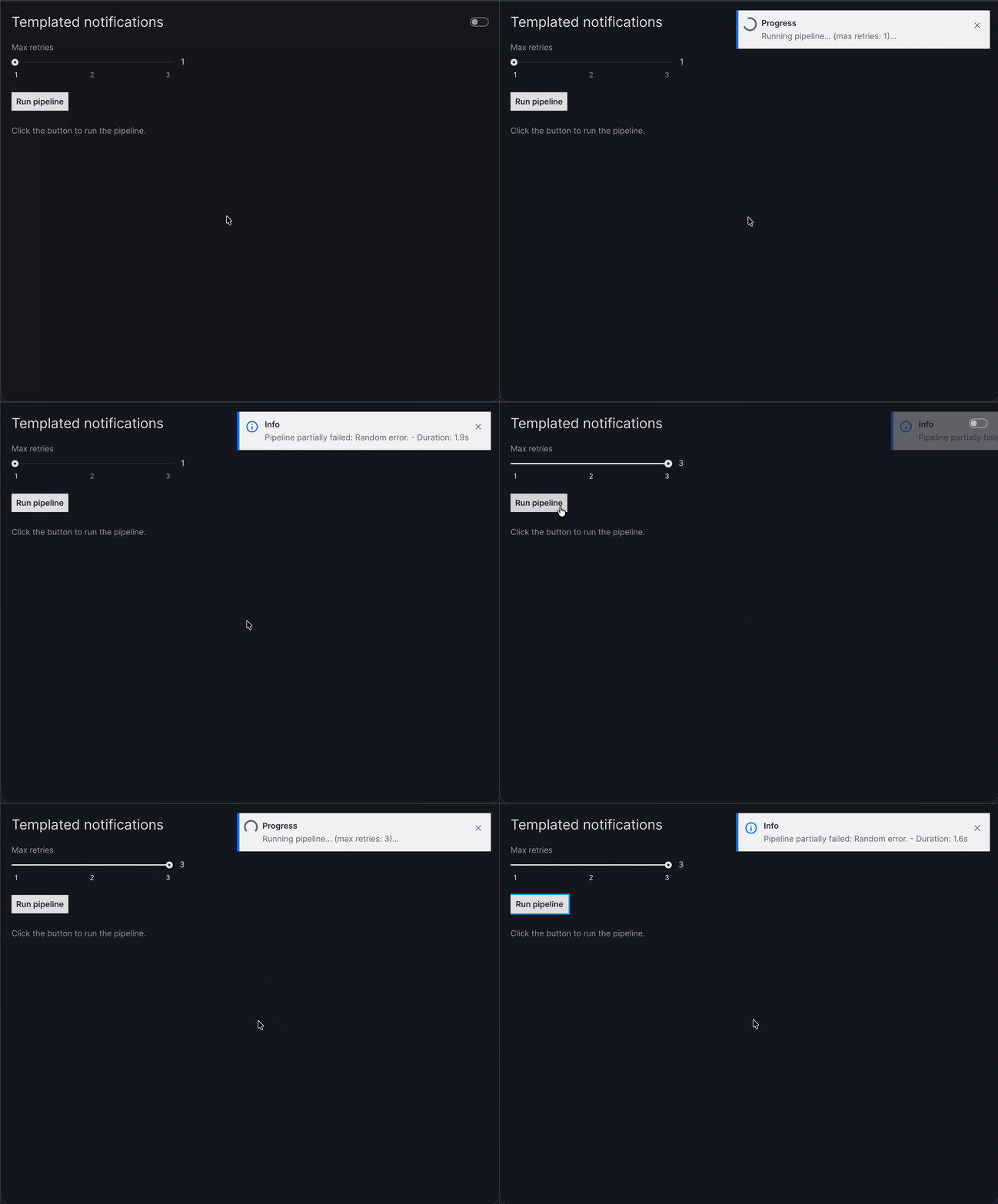
Progress notifications can also include template variables based on the runtime action's input values. These variables are referenced using the parameter names, for example {param_name}.
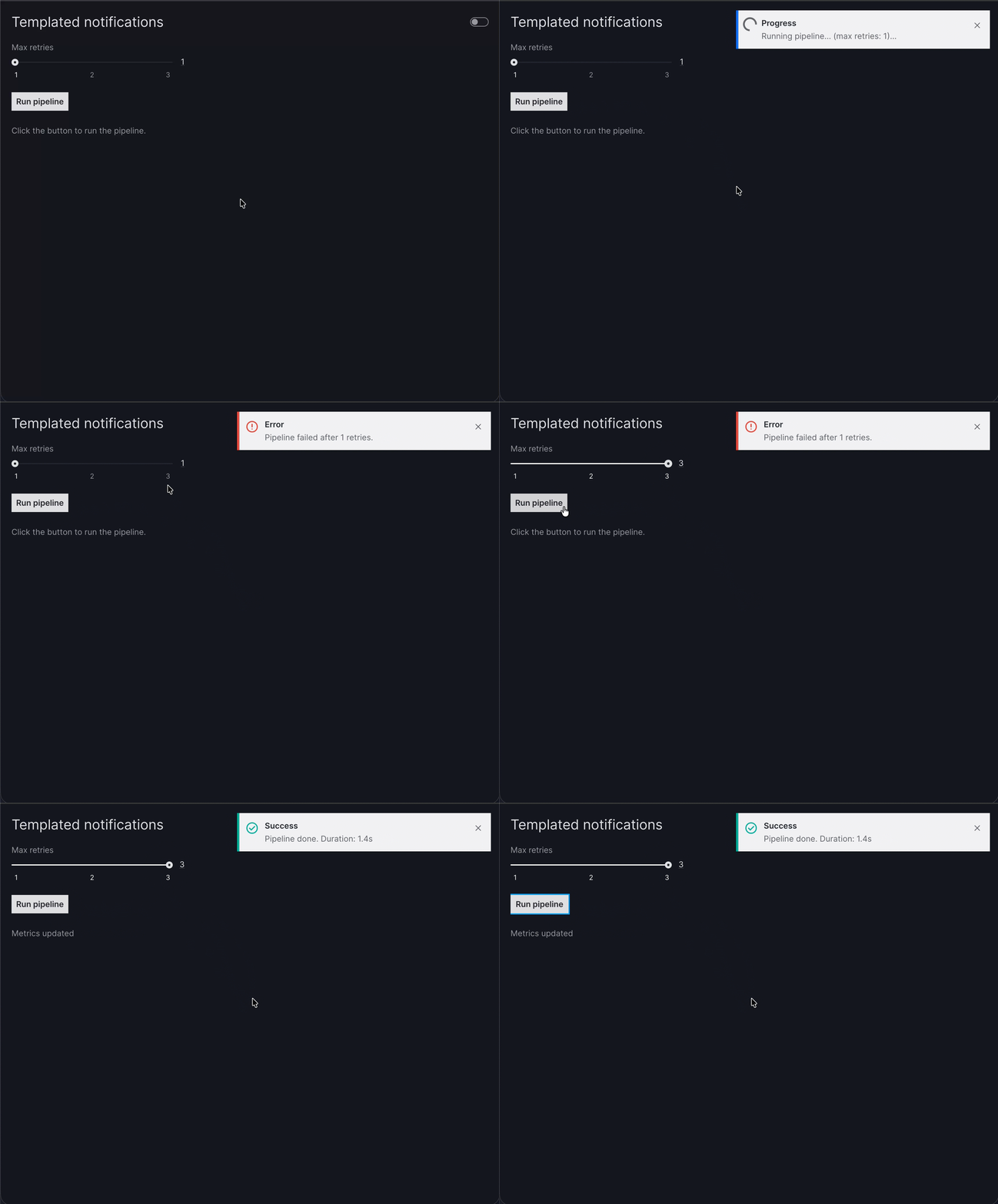
The progress message reflects the current inputs of the action to make it more informative. For example, you can display the number of retries configured while the action is running.
Dynamic progress text
import random
from time import sleep

import vizro.models as vm
from vizro import Vizro
from vizro.models.types import capture

vm.Page.add_type("components", vm.Slider)


@capture("action")
def run_pipeline(max_retries: int = 1):  # (1)!
    for _ in range(max_retries):
        duration = random.uniform(1, 2)
        duration_result = f"Duration: {duration:.1f}s"
        sleep(duration)

        if random.choice([True, False]): # (2)!
            roll = random.choice(["A", "B", "C", "D"])
            if roll == "A":
                raise Exception("Random error.", ("error", duration_result))
            if roll == "B":
                raise Exception("Random error.", ("pipeline_partial_error", duration_result))
            if roll == "C":
                return "Metrics updated", ("success", duration_result)
            if roll == "D":
                return "Metrics updated", ("pipeline_partial_success", duration_result)

    raise Exception("Random error.", ("pipeline_max_retries_error", max_retries))


page = vm.Page(
    title="Templated notifications",
    layout=vm.Flex(),
    components=[
        vm.Slider(id="slider_id", min=1, max=3, step=1, value=1, title="Max retries"),
        vm.Button(
            text="Run pipeline",
            actions=vm.Action(
                function=run_pipeline(max_retries="slider_id"),
                outputs="pipeline_output",
                notifications={
                    "progress": "Running pipeline... (max retries: {max_retries})...",  # (3)!
                    "success": "Pipeline done. {result}",
                    "error": "Pipeline failed: {error_msg} - {result}",
                    "pipeline_partial_success": "Pipeline partially completed. {result}",
                    "pipeline_partial_error": "Pipeline partially failed: {error_msg} - {result}",
                    "pipeline_max_retries_error": "Pipeline failed after {result} retries.",
                },
            ),
        ),
        vm.Text(id="pipeline_output", text="Click the button to run the pipeline."),
    ],
)

dashboard = vm.Dashboard(pages=[page])
Vizro().build(dashboard).run()
Run and edit this code in Py.Cafe
- Action's input argument
max_retrieswhich dynamic value shows in the"progress"notification text. - On each attempt, decide whether to run the A/B/C/D roll. If it is
False, the loop tries again untilmax_retriesis exhausted, and then the action raises an exception. - Define the
"progress"notification text with the{max_retries}template that gets replaced by the runtime value of themax_retriesargument when the action runs.
# Still requires a .py to define the custom action, call vm.Page.add_type("components", vm.Slider),
# and parse YAML configuration. See yaml_version example.
pages:
  - components:
      - type: slider
        id: slider_id
        min: 1
        max: 3
        step: 1
        value: 1
        title: Max retries
      - type: button
        text: Run pipeline
        actions:
          - type: action
            function:
              _target_: __main__.run_pipeline
              max_retries: slider_id
            outputs: pipeline_output
            notifications:
              progress: "Running pipeline... (max retries: {max_retries})..."
              success: "Pipeline done. {result}"
              error: "Pipeline failed: {error_msg} - {result}"
              pipeline_partial_success: "Pipeline partially completed. {result}"
              pipeline_partial_error: "Pipeline partially failed: {error_msg} - {result}"
              pipeline_max_retries_error: "Pipeline failed after {result} retries."
      - type: text
        id: pipeline_output
        text: Click the button to run the pipeline.
    layout:
      type: flex
    title: Templated notifications
Customize notification appearance and behavior
Notifications do not have to be limited to plain text. You can customize how they look and behave, for example, by adjusting the variant, adding a title or icon, or controlling whether they close automatically. See the notifications guide for a full list of available options.
To customize notifications when you define them, use the show_notification or update_notification models instead of plain text as values in the notifications dictionary.
Customized notification with show_notification
import random
from time import sleep

import vizro.actions as va
import vizro.models as vm
from vizro import Vizro
from vizro.models.types import capture

vm.Page.add_type("components", vm.Slider)


@capture("action")
def run_pipeline(max_retries: int = 1):
    for _ in range(max_retries):
        duration = random.uniform(1, 2)
        duration_result = f"Duration: {duration:.1f}s"
        sleep(duration)

        if random.choice([True, False]):
            roll = random.choice(["A", "B", "C", "D"])
            if roll == "A":
                raise Exception("Random error.", ("error", duration_result))
            if roll == "B":
                raise Exception("Random error.", ("pipeline_partial_error", duration_result))
            if roll == "C":
                return "Metrics updated", ("success", duration_result)
            if roll == "D":
                return "Metrics updated", ("pipeline_partial_success", duration_result)

    raise Exception("Random error.", ("pipeline_max_retries_error", max_retries))


page = vm.Page(
    title="Templated notifications",
    layout=vm.Flex(),
    components=[
        vm.Slider(id="slider_id", min=1, max=3, step=1, value=1, title="Max retries"),
        vm.Button(
            text="Run pipeline",
            actions=vm.Action(
                function=run_pipeline(max_retries="slider_id"),
                outputs="pipeline_output",
                notifications={
                    "progress": va.show_notification(id="progress_id", variant="progress", text="Running pipeline... (max retries: {max_retries})..."),  # (1)!
                    "success": "Pipeline done. {result}",
                    "error": "Pipeline failed: {error_msg} - {result}",
                    "pipeline_partial_success": va.update_notification(variant="success", notification="progress_id", text="Pipeline partially completed. {result}"),   # (2)!
                    "pipeline_partial_error": va.update_notification(variant="error", notification="progress_id", text="Pipeline partially failed: {error_msg} - {result}"),  # (3)!
                    "pipeline_max_retries_error": va.update_notification(variant="error", notification="progress_id", text="Pipeline failed after {result} retries."),  # (4)!
                },
            ),
        ),
        vm.Text(id="pipeline_output", text="Click the button to run the pipeline."),
    ],
)

dashboard = vm.Dashboard(pages=[page])
Vizro().build(dashboard).run()
Run and edit this code in Py.Cafe
- Use
va.show_notificationto define the"progress"notification with anidthat can be referenced by other notifications. - Use
va.update_notificationto update the"progress"notification with new text and variant when the"pipeline_partial_success"key is returned. - Use
va.update_notificationto update the"progress"notification with new text and variant when the"pipeline_partial_error"key is raised. - Use
va.update_notificationto update the"progress"notification with new text and variant when the"pipeline_max_retries_error"key is raised.
# Still requires a .py to define the custom action, call vm.Page.add_type("components", vm.Slider),
# and parse YAML configuration. See yaml_version example.
pages:
  - components:
      - type: slider
        id: slider_id
        min: 1
        max: 3
        step: 1
        value: 1
        title: Max retries
      - type: button
        text: Run pipeline
        actions:
          - type: action
            function:
              _target_: __main__.run_pipeline
              max_retries: slider_id
            outputs: pipeline_output
            notifications:
              progress:
                type: show_notification
                id: progress_id
                variant: progress
                text: "Running pipeline... (max retries: {max_retries})..."
              success: "Pipeline done. {result}"
              error: "Pipeline failed: {error_msg} - {result}"
              pipeline_partial_success:
                type: update_notification
                notification: progress_id
                variant: success
                text: "Pipeline partially completed. {result}"
              pipeline_partial_error:
                type: update_notification
                notification: progress_id
                variant: error
                text: "Pipeline partially failed: {error_msg} - {result}"
              pipeline_max_retries_error:
                type: update_notification
                notification: progress_id
                variant: error
                text: "Pipeline failed after {result} retries."
      - type: text
        id: pipeline_output
        text: Click the button to run the pipeline.
    layout:
      type: flex
    title: Templated notifications
Debugging and error handling
By default, every custom action shows a generic error notification with message "Action failed" if something goes wrong. You can override this with a more specific message, or disable error notifications entirely by setting "error": None. If error notifications are disabled and the app is running in debug mode, any unhandled exceptions are shown in the Dash Dev Tools debugger instead of a notification. All exceptions, except PreventUpdate, are always logged to the server console, regardless of how notifications are configured.
PreventUpdate and no_update are handled as described in the actions chain tutorial. Both are treated as a success (shows the "success" notification if defined) but only PreventUpdate cancels the action chain.