Skip to content

Controls

Vizro supports controls to perform common business intelligence (BI) operations. This guide gives an overview of the different ways you can configure controls.

The following components are reactive to controls:

It is possible to add controls to a page or container. Both the Page model and the Container model have an optional controls argument where you can configure any number of controls.

Vizro has two types of control:

  • Filter controls the data of reactive components. It filters the data_frame of the figure function of a target component model such as Graph.

  • Parameter controls the configuration of a reactive component. It sets any argument other than data_frame in the figure function of the target component model such as Graph. It can also be used to set dynamic data parameters.

All controls have an argument selector that configures the visual interface for the control, for example a checklist or a range slider. The same selectors are available for all controls.

Set a control

When the dashboard is running there are two ways for a user to set a control:

Tip

The state of any control that has show_in_url=True is included when you share the URL of your app.

Reset controls

You can reset all controls on the page to their original values with the "Reset controls" button at the bottom of the control panel on the left side of the page. This applies to all controls on the page, regardless of whether they are visible. When all controls on a page have visible=False and hence no control panel is shown, the "Reset controls" button appears next to the theme switch on the top right of the page.

Group controls

To organize the control panel on a page into sections, you can group filters and parameters under a title using a ControlGroup. Control groups are only available for page-level controls. Use a control group when you want to:

  • Visually separate different sets of controls on the same page (for example, "Filters" and "Parameters").
  • Add a title or short description to a subset of controls so users understand what they affect.
  • Keep the page control panel organized when you have many controls.

Control Group

from vizro import Vizro
import vizro.plotly.express as px
import vizro.models as vm

iris = px.data.iris()

page = vm.Page(
    title="My first page",
    components=[
        vm.Graph(
            id="scatter_chart",
            figure=px.scatter(iris, x="sepal_length", y="petal_width", color="species")
        ),
    ],
    controls=[
        vm.ControlGroup(
            title="Filters",
            controls=[
                vm.Filter(column="species"),
                vm.Filter(column="sepal_length")
            ]
        ),
        vm.ControlGroup(
            title="Parameter",
            controls=[
                vm.Parameter(
                    targets=["scatter_chart.title"],
                    selector=vm.Dropdown(
                        options=["My scatter chart", "A better title!", "Another title..."],
                        multi=False,
                    ),
                ),
            ]
        ),
    ],
)

dashboard = vm.Dashboard(pages=[page])
Vizro().build(dashboard).run()

Run and edit this code in Py.Cafe

# Still requires a .py to add data to the data manager and parse YAML configuration
# See yaml_version example
pages:
  - title: My first page
    components:
      - id: scatter_chart
        figure:
          _target_: scatter
          data_frame: iris
          x: sepal_length
          y: petal_width
          color: species
        type: graph
    controls:
      - type: control_group
        title: Filters
        controls:
          - column: species
            type: filter
          - column: sepal_length
            type: filter
      - type: control_group
        title: Parameter
        controls:
          - type: parameter
            targets:
              - scatter_chart.title
            selector:
              options: [My scatter chart, A better title!, Another title...]
              multi: false
              type: dropdown
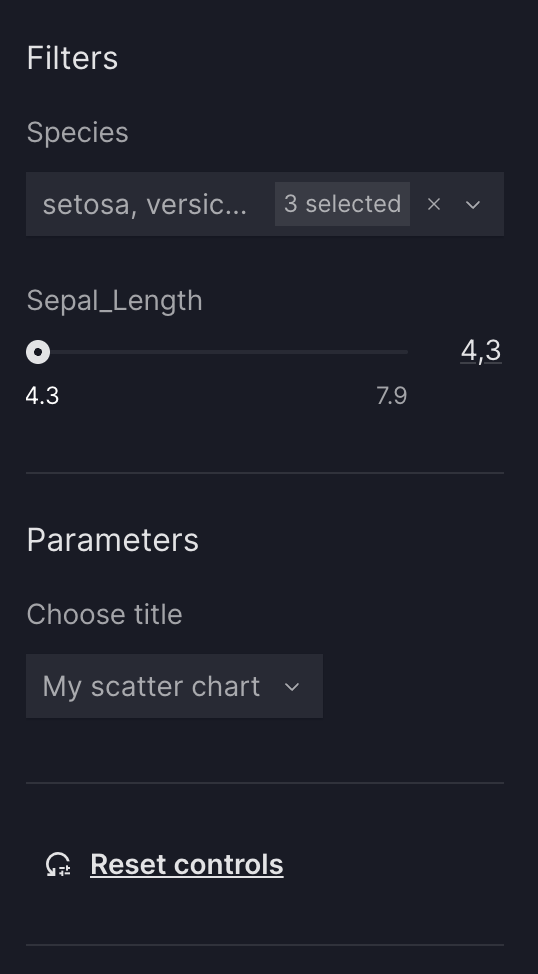
ControlGroup

Sync controls

You can keep two controls in sync so that changing one automatically applies the same value to the other. This is useful, for example, when you need to both filter and parametrize a chart from the same user selection, such as filtering a chart down to one species and also using that species to set the chart's title. The two controls can be on the same page or on different pages.

To sync controls, add another control's id to the targets of a filter or parameter. Whenever the control changes, Vizro sets the targeted control to the same value (using the set_controls action behind the scenes) and then refreshes the figure targets of both controls. All combinations work: filter with filter, parameter with parameter, and filter with parameter.

Syncing copies one control's value straight into the other, so the two controls must understand the same kind of value. Pair a categorical selector (Dropdown, RadioItems, Checklist) with another categorical selector, a range numeric Slider(range=True) with another range numeric one, and so on. A multi-select selector syncs into a single-select one only while one value is selected.

A parameter always needs a figure target

A filter that targets only other controls still applies to the page's figures: it falls back to every figure whose data includes its column, exactly as if no targets were given. A parameter has no such fallback, because it applies its value through its <component>.<argument> targets. A parameter must therefore always target at least one figure argument in addition to any controls it syncs.

A control that only drives other controls is not a Filter or Parameter

By design a filter and parameter always act on figures, so neither can exist purely to drive other controls. A filter with no figure target is not a filter, and a parameter with no figure target is not a parameter.

If a control that only sets other controls (and filters or parametrizes nothing itself) is exactly what you want, skip the filter/parameter wrapper: put a bare selector (for example a RadioItems) straight into the layout and give it an explicit set_controls action for each control it should drive. The targeted controls do the actual figure work when their value changes. A selector is normally only allowed inside a filter or parameter, so first whitelist it on its parent with the add_type like:

import vizro.models as vm
from vizro.actions import set_controls

vm.Page.add_type("components", vm.RadioItems)  # allow a bare selector as a component (Container.add_type also works)

# ...then, as a Page component:
vm.RadioItems(
    options=["setosa", "versicolor", "virginica"],
    # A single `set_controls` can drive several controls at once by passing a list of ids to `controls`.
    # `value` is omitted: a selector-driven sync sends its own live value to the targeted controls.
    actions=[set_controls(controls=["species_filter_1", "species_filter_2"])],
)

Sync a filter with a hidden parameter

import vizro.models as vm
import vizro.plotly.express as px
from vizro import Vizro
from vizro.models.types import capture

iris = px.data.iris()


@capture("graph")
def scatter_with_title(data_frame, selected_species):
    title=f"Species: {selected_species}"  # (1)!
    fig = px.scatter(data_frame, x="sepal_length", y="sepal_width", color="species", title=title)
    return fig


page = vm.Page(
    title="Sync controls",
    components=[
        vm.Graph(id="scatter_chart", figure=scatter_with_title(data_frame=iris, selected_species="setosa")),
    ],
    controls=[
        vm.Filter(column="species", targets=["scatter_chart", "title_parameter"], selector=vm.RadioItems()),  # (2)!
        vm.Parameter(
            id="title_parameter",
            targets=["scatter_chart.selected_species"],  # (3)!
            selector=vm.RadioItems(options=["setosa", "versicolor", "virginica"], value="setosa"),
            visible=False,
        ),
    ],
)

dashboard = vm.Dashboard(pages=[page])
Vizro().build(dashboard).run()

Run and edit this code in Py.Cafe

  1. The custom chart turns the raw selected_species value into a human-readable title (for example "setosa" becomes "Species: setosa"). Because the title is built inside the figure function, the parameter can drive any derived output, not just a literal string.
  2. The filter targets its own graph as usual, plus title_parameter. Changing the filter filters the chart and sets title_parameter to the same species.
  3. title_parameter feeds the selected species into the custom chart's selected_species argument, which composes the title from it. Its selector is hidden with visible=False because the user only interacts with the filter; the parameter's value is driven entirely by the sync.
# Still requires a .py to add data to the data manager, define CapturedCallables, and parse YAML configuration
# See yaml_version example
pages:
  - title: Sync controls
    components:
      - id: scatter_chart
        type: graph
        figure:
          _target_: __main__.scatter_with_title
          data_frame: iris
          selected_species: setosa
    controls:
      - type: filter
        column: species
        targets: [scatter_chart, title_parameter]
        selector:
          type: radio_items
      - id: title_parameter
        type: parameter
        targets: [scatter_chart.selected_species]
        selector:
          type: radio_items
          options: [setosa, versicolor, virginica]
          value: setosa
        visible: false

SyncControls

Sync controls across pages

A control's targets can also list controls on other pages. Cross-page syncing works exactly like same-page syncing: you still just add the target control's id to targets, and a value set is applied to the synced control on another page when you open that page.

The example below syncs one filter across two pages. Both controls are visible so you can watch the value carry over: pick a species on Overview, open Detail, and its filter already shows the same species.

Sync a control across two pages

import vizro.models as vm
import vizro.plotly.express as px
from vizro import Vizro
from vizro.tables import dash_ag_grid

iris = px.data.iris()

overview_page = vm.Page(
    title="Overview",
    components=[
        vm.Table(id="overview_table", figure=dash_ag_grid(iris)),
    ],
    controls=[
        vm.Filter(
            column="species",
            targets=["overview_table", "detail_species"],  # (1)!
            selector=vm.Dropdown(title="Species"),
        ),
    ],
)

detail_page = vm.Page(
    title="Detail",
    components=[
        vm.Graph(id="detail_graph", figure=px.scatter(iris, x="petal_width", y="petal_length", color="species")),
    ],
    controls=[
        vm.Filter(id="detail_species", column="species", targets=["detail_graph"]),  # (2)!
    ],
)

dashboard = vm.Dashboard(pages=[overview_page, detail_page])
Vizro().build(dashboard).run()

Run and edit this code in Py.Cafe

  1. The Overview filter targets its own table and detail_species, the species filter on the Detail page. Choose a species here and it is applied to Detail too.
  2. detail_species is an ordinary, visible filter. When you open Detail after choosing a species on Overview, it already shows that same species.
# Still requires a .py to add data to the data manager and parse YAML configuration
# See yaml_version example
pages:
  - title: Overview
    components:
      - id: overview_table
        type: table
        figure:
          _target_: dash_ag_grid
          data_frame: iris
    controls:
      - type: filter
        column: species
        targets: [overview_table, detail_species]
        selector:
          type: dropdown
          title: Species
  - title: Detail
    components:
      - id: detail_graph
        type: graph
        figure:
          _target_: scatter
          data_frame: iris
          x: petal_width
          y: petal_length
          color: species
    controls:
      - id: detail_species
        type: filter
        column: species
        targets: [detail_graph]

SyncControlsAcrossPages

The same mechanism powers drill-through: when a set_controls is triggered from a figure or component (a Graph, AgGrid, Button, or Card) rather than from a control's own selector, and its target control is on another page, Vizro navigates to that page and applies the value there. See graph and table interactions for more.

Things to know about cross-page syncing

  • Values apply on page open, not live. Changing a control updates its cross-page targets the next time you open their pages, not while you are still on the source page.
  • Syncing is not transitive. If page A syncs to page B and page B syncs to page C, opening page B restores its value from A but does not itself re-trigger the B → C sync. C only updates when you actually change B's control. To keep all three in sync, target them directly from A instead, for example targets=["B_control", "C_control"].
  • Reset is per page. The "Reset controls" button resets only the current page. A synced control can therefore temporarily differ from its source after a reset, until you change the source again.
  • Keep synced controls compatible. Vizro applies the value as-is and does not validate that the two controls accept the same kind of value. Syncing, say, a species selection into a numeric range would coerce the value and can filter to nothing. If a synced control is a dynamic filter, make sure the synced value is still a valid option after the data refreshes.

Apply controls with a button

By default, changing a control immediately refreshes the components it targets. Sometimes you would rather let a user adjust several controls first and apply them all at once, for example to avoid recomputing an expensive figure on every change.

To stop a control from refreshing its targets as soon as its value changes, set its selector's actions=None. The control still contributes its value whenever its targets are refreshed by something else; it just no longer triggers a refresh on its own.

To refresh the targets on demand, add a Button that runs the update_targets action. A bare va.update_targets() refreshes every figure on the page (and recomputes the options of any dynamic filters); pass targets to refresh only specific components. See the actions guide for more on update_targets.

Apply controls with a button

import vizro.actions as va
import vizro.models as vm
import vizro.plotly.express as px
from vizro import Vizro

iris = px.data.iris()

page = vm.Page(
    title="Apply controls with a button",
    components=[
        vm.Graph(
            id="scatter_chart",
            figure=px.scatter(iris, x="sepal_length", y="petal_width", color="species"),
        ),
        vm.Button(text="Apply controls", actions=va.update_targets()),  # (1)!
    ],
    controls=[
        vm.Filter(column="species", selector=vm.Checklist(actions=None)),  # (2)!
        vm.Parameter(
            targets=["scatter_chart.x"],
            selector=vm.RadioItems(options=["sepal_length", "petal_length"], actions=None),  # (3)!
        ),
    ],
)

dashboard = vm.Dashboard(pages=[page])
Vizro().build(dashboard).run()

Run and edit this code in Py.Cafe

  1. The update_targets action refreshes the page's figures using the current control values. Called with no arguments it refreshes every figure on the page; pass targets to refresh only specific components.
  2. Setting the selector's actions=None stops the filter from applying as soon as its value changes. Its value is still used whenever the graph is refreshed, here when the button is clicked.
  3. Setting the selector's actions=None stops the parameter from applying as soon as its value changes. Its value is still used whenever the graph is refreshed, here when the button is clicked.
# Still requires a .py to add data to the data manager and parse YAML configuration
# See yaml_version example
pages:
  - title: Apply controls with a button
    components:
      - id: scatter_chart
        figure:
          _target_: scatter
          data_frame: iris
          x: sepal_length
          y: petal_width
          color: species
        type: graph
      - type: button
        text: Apply controls
        actions:
          - type: update_targets
    controls:
      - column: species
        type: filter
        selector:
          type: checklist
          actions: []
      - type: parameter
        targets:
          - scatter_chart.x
        selector:
          type: radio_items
          options: [sepal_length, petal_length]
          actions: null

ApplyControlsWithAButton